
Modern software development moves fast, and every extra approval request can slow progress. Claude Auto Mode helps developers handle routine tasks with fewer interruptions while still keeping security front and center in every workflow. It creates a smoother experience for handling everyday operations without sacrificing safety. Developers looking for more information about Claude’s different plans can also compare Claude Pro vs Max before choosing the right setup.
Instead of asking for permission at every step this feature evaluates actions, understands trusted environments and blocks only activities that may introduce unnecessary risk. As a result developers spend more time building software and less time waiting on approvals.
What Is Claude Auto Mode
Claude Auto Mode is a permissions mode in Claude Code where Claude makes permission decisions on your behalf, with safeguards monitoring actions before they run. Before each tool call runs, a classifier reviews it to check for potentially destructive actions, like mass deleting files, sensitive data exfiltration or malicious code execution.
Rather than allowing every command automatically or requiring manual approval for everything, actions the classifier deems safe proceed automatically, and risky ones get blocked, redirecting Claude to take a different approach. If Claude repeatedly runs into blocked actions, the session eventually falls back to a manual permission prompt.
Why Modern Development Teams Need Smarter Permission Management
Development teams interact with repositories, cloud platforms, deployment tools and internal services every day. Constant approval requests interrupt workflows and reduce efficiency, but skipping permission checks entirely with flags like –dangerously-skip-permissions introduces real danger outside of isolated environments.
Auto Mode is meant to sit between those two extremes, fewer interruptions than full manual approval, less risk than skipping permissions altogether. This balance becomes especially valuable for organizations handling multiple applications and distributed engineering teams. Teams comparing AI coding assistants may also want to see Claude Code vs GitHub Copilot before deciding which development workflow fits their needs.
Auto Mode Rollout and Plan Availability
Availability has expanded in stages since the feature was first introduced, and where it stands today depends on which plan or platform a team is using.
| Plan or Platform | Current Status | Notes |
| Pro, Max, Team | Default for new sessions | Became the default starting August 14, 2026 |
| Enterprise | Opt in | Anthropic has stated plans to expand default rollout here |
| Claude API | Opt in | Available to enable manually |
| Claude Platform on AWS, Bedrock, Google Cloud Agent Platform, Microsoft Foundry | Opt in | Available on all these providers, default rollout planned |
How Auto Mode Compares to Other Permission Approaches
Choosing the right permission setting depends on how much oversight a team wants versus how much friction they’ve willing to tolerate. Here’s how the main approaches stack up.
| Approach | Interruptions | Risk Level | Best Fit |
| Default manual approval | High, every file write and command | Low | Small tasks, high sensitivity work |
| Auto Mode | Low, only risky actions prompt | Moderate, reduced but not zero | Longer sessions, most day to day development |
| –dangerously-skip-permissions | None | High | Isolated, sandboxed environments only |
According to Anthropic’s own testing, human reviewers caught a deliberately inserted dangerous command only a small fraction of the time during a controlled study, while Auto Mode’s classifier blocked the large majority of the same test commands, a meaningful gap given that Anthropic has also reported developers approve most permission prompts without close scrutiny in normal use.
Understanding the Decision Process
The permission process generally follows several steps:
- Reviews the requested action
- Compares it against trusted environments and organization policies
- Checks for hard deny categories, like data exfiltration, that are never automatically approved
- Identifies sensitive resources and destinations, including whether a git push or pull request target is public, private or trusted
- Determines whether the action can proceed automatically or needs manual approval
- Blocks unsafe operations and looks for a safer path, or falls back to a permission prompt
Claude Auto Mode Benefits for Development Teams
Organizations adopt automation tools because they improve consistency and reduce manual work. This feature offers several practical advantages.
Developers experience fewer interruptions during daily coding tasks. Security teams maintain stronger control over sensitive environments through hard deny rules and customizable settings. Project managers benefit from faster delivery timelines because routine work flows more smoothly. Engineering leaders can apply organization wide policies without creating unnecessary obstacles for developers.
Building a Trusted Development Environment
A trusted environment defines where automated actions are considered safe. Organizations usually include approved source control platforms, internal domains, cloud storage buckets, deployment services, package registries and infrastructure resources.
When these trusted locations are clearly defined through the autoMode settings block, developers can work more efficiently while reducing accidental exposure to external systems. Well maintained configuration also improves consistency across different projects. For higher-risk AI workflows, an AI NoCode Software Sandbox Environment can provide an additional layer of isolation between automated agents and production systems.
Configuring Trusted Resources
Configuration starts with identifying the resources developers use every day. Common trusted resources include Git repositories, cloud storage services, internal APIs, artifact repositories, deployment pipelines and development environments.
Each organization should document these trusted resources carefully so every team follows the same security standards. Clear configuration also reduces confusion for new developers joining existing projects.
Security Remains the Highest Priority
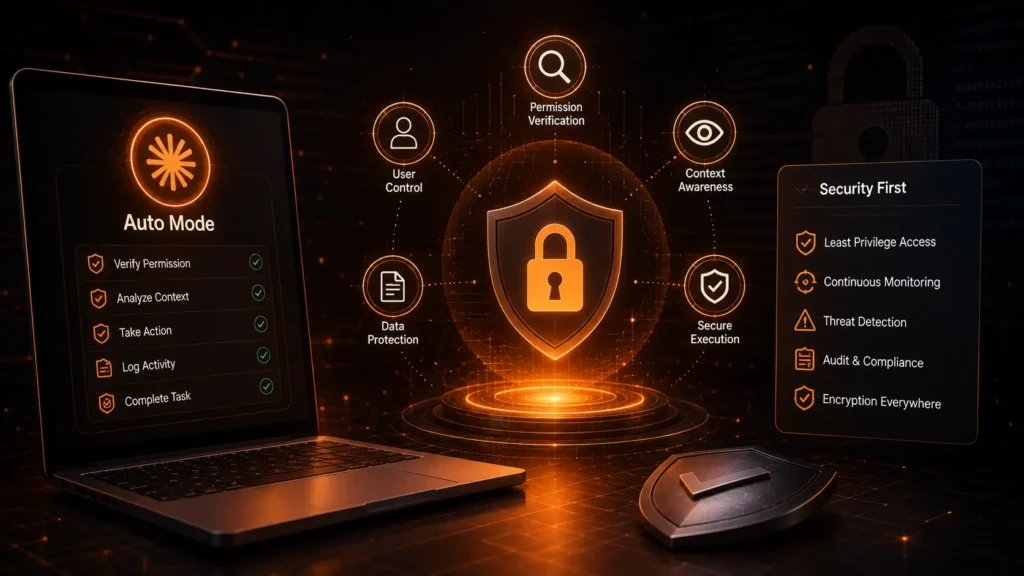
Permission management works best when sensitive production systems, confidential repositories and protected infrastructure remain guarded by strict approval rules. Certain categories, like sending code or secrets somewhere external, sit in a hard deny bucket the classifier is designed to never approve on its own, regardless of trusted environment settings.
Organizations can separate routine development work from high risk operations. This allows safe activities to continue automatically while production changes still require human review.
Best Practices for Safe Configuration
A successful setup starts with clear planning. Every organization should identify trusted resources before enabling automation across development teams.
Keep configuration files updated whenever new repositories, cloud services or internal applications are introduced. Regular review helps ensure that outdated resources do not remain inside trusted environments.
Common Mistakes to Avoid
Many organizations focus only on ease and overlook proper security planning. Which can create unnecessary risks.
One common mistake is trust on every repository or cloud service without reviewing whether it actually belongs to the organization. Another issue is forgetting to update trusted resources after infrastructure changes. Since outdated configurations may block legitimate work or accidentally allow outdated systems.
Where Auto Mode Still Has Limits
No classifier is perfect, and being upfront about the remaining risk matters as much as highlighting the benefits.
- The classifier can still allow some risky actions when user intent is ambiguous
- It reduces risk compared to skipping permissions entirely, but doesn’t eliminate it
- Anthropic continues to recommend isolated environments even with Auto Mode enabled
- The classifier uses extra tokens and adds some latency per tool call, though Anthropic has stopped charging separately for that overhead on Pro, Max and Team plans
- Teams with a pinned default permission setting won’t be switched automatically, so those relying on manual review need to opt in deliberately if they want the added coverage
Integrating Auto Mode into Your Development Workflow
Development workflows include version control, testing, package management, deployments and monitoring. Permission automation fits naturally into these stages when configured correctly.
For example, developers can commit code, execute test suites, install approved packages and interact with internal services without repeated approval requests. This separation allows everyday work to move quickly while maintaining strong governance over critical systems.
Real World Example
Imagine a software company with hundreds of engineers working on multiple applications. Each developer needs access to internal repositories, testing environments, artifact storage and deployment pipelines.
Without intelligent permission management, developers receive approval prompts throughout the day, slowing progress and creating frustration. With properly configured automation, routine development tasks continue smoothly because trusted resources are already recognized. Only unusual or potentially risky operations trigger manual approval.
Why This Feature Supports Better Collaboration
Engineering teams often work across different departments and locations. Consistent permission management helps everyone follow the same standards.
- Developers understand which actions happen automatically and which require review
- Security teams maintain visibility into sensitive operations
- Project managers benefit from predictable development workflows because unnecessary interruptions are reduced
- This shared understanding creates healthier collaboration between development, operations and security teams
Teams also using Claude for sensitive conversations may want to review How to Have Password-Protected Chats in Claude as part of a broader privacy strategy.
Future of Intelligent Permission Management
Software development continues to become more automated each year. Development platforms now manage testing, deployments, infrastructure monitoring and cloud resources with minimal manual effort.
Permission management is evolving alongside these changes, making smarter decisions based on trusted environments instead of relying only on static allow lists.
How Organizations Can Improve Their Configuration Over Time

Technology environments constantly evolve. New services, repositories and cloud platforms are added as businesses grow. Organizations should review their trusted environments regularly to ensure configurations remain accurate.
Security teams can analyze approval requests to identify patterns. If developers repeatedly request access to the same trusted resource, it may be appropriate to include that resource in future configurations. Continuous improvement creates a permission system that becomes more accurate, efficient and reliable over time.
Final Thoughts
For organizations seeking faster development without compromising security. Claude Auto Mode offers a practical solution, backed by real testing data rather than just a convenience promise. By reducing unnecessary permission prompts, recognizing trusted environments and enforcing hard deny rules on the riskiest actions. It helps engineering teams work more efficiently while maintaining meaningful control over critical resources. It’s not a replacement for isolated environments or good judgment. But when configured carefully and reviewed regularly, it becomes a genuinely useful part of a secure development workflow.
FAQs
What does auto mode do in Claude?
Auto Mode delivers powerful, classifier driven protection by reviewing every tool call before it runs, automatically approving safe actions and blocking destructive ones. The trade off is a small amount of added latency and token use per action, though Anthropic no longer charges extra for that on Pro, Max and Team plans.
How do I enable auto-mode in Claude?
Enabling Auto Mode is refreshingly simple since it’s now the strong default for new Claude Code sessions on Pro, Max and Team plans as of August 14, 2026. The one drawback is that if you’ve already pinned a different permission setting yourself. It won’t switch automatically you’ll need to opt in manually through your settings.
How to do auto mode in Claude code?
Claude Code runs Auto Mode through the autoMode settings block, where you define trusted repositories, buckets and domains so the classifier stops flagging routine internal work. This gives teams powerful, tailored control, though it does require some upfront configuration effort to get the trust boundaries right.
What is the Claude command for auto mode?
There isn’t a single manual command to memorize, which is a genuine convenience, since Auto Mode runs automatically as the default permission mode rather than something you toggle per session. The downside is that users on Enterprise, the API or other cloud platforms still need to opt in explicitly. Since it isn’t the default there yet.